Quick Start
Deploy WaSphere with Docker and send your first WhatsApp message in about 10 minutes.
Quick Start
This guide gets the full WaSphere stack running with one docker compose up, connects a WhatsApp number, and sends a test message — in about 10 minutes.
Prerequisites
- A machine (your laptop or a Linux server) with Docker Engine 24+ and Docker Compose v2
- For a public deployment: a domain and your own reverse proxy (nginx / Caddy / Traefik) in front — WaSphere does not bundle one
- Git
Not sure if Docker is ready? Run docker compose version — you need v2.x or higher. Install it from docs.docker.com.
Step 1 — Clone and configure
git clone https://github.com/wasphere/wasphere.git
cd wasphere
cp .env.example .env
Open .env and fill in the secrets. Generate each one with openssl rand -hex 32:
# .env
# ── Database ──
POSTGRES_USER=wasphere
POSTGRES_PASSWORD=                 # openssl rand -hex 16
POSTGRES_DB=wasphere

# ── Secrets (generate each separately) ──
JWT_SECRET=                        # openssl rand -hex 32
ENCRYPTION_KEY=                    # openssl rand -hex 32  (32 bytes / 64 hex chars)
WA_TOKEN=                          # openssl rand -hex 32
WEBHOOK_SIGNING_SECRET=            # openssl rand -hex 32
INTERNAL_WEBHOOK_SECRET=           # openssl rand -hex 32

# ── URL (for CORS) ──
DASHBOARD_UI_URL=http://localhost:3004    # or https://app.your-domain.com behind a proxy
Generate every secret separately — never reuse one value for two settings. ENCRYPTION_KEY must be exactly 64 hex characters (it encrypts your stored WA Server token).
Step 2 — Start the stack
docker compose up -dThis builds and starts four services and runs the database migrations automatically (first run takes a few minutes):
[+] Running 5/5
 ✔ Network wasphere_internal          Created
 ✔ Container wasphere-postgres-1       Healthy
 ✔ Container wasphere-dashboard-api-1  Started
 ✔ Container wasphere-wa-server-1      Started
 ✔ Container wasphere-dashboard-ui-1   Started
docker-compose.yml is the portable, self-contained stack (Postgres, WA Server, Dashboard API, Dashboard UI). There is no Traefik or Redis — put it behind your own reverse proxy for TLS. A Dokploy-flavoured docker-compose.prod.yml is also included if you use Dokploy.
Step 3 — Verify the services are healthy
docker compose psAll four should report healthy within a minute:
NAME                       STATUS          PORTS
wasphere-postgres-1        Up (healthy)    5432/tcp
wasphere-dashboard-api-1   Up (healthy)    0.0.0.0:3000->3000/tcp
wasphere-wa-server-1       Up (healthy)    0.0.0.0:3001->3001/tcp
wasphere-dashboard-ui-1    Up (healthy)    0.0.0.0:3004->3004/tcp
If a container is restarting, check its logs:
docker compose logs dashboard-api --tail=50Step 4 — Open the dashboard and create your admin account
Open http://localhost:3004 (or your domain, behind your proxy).
The first time, WaSphere shows a registration page — the first account you create becomes the admin, then registration locks automatically. Create your account and sign in.
Step 5 — Point the dashboard at your WA Server
In the dashboard, go to Settings → WA Server and set:
- Server URL:
http://wa-server:3001(the Docker service name — notlocalhost) - API Token: the
WA_TOKENvalue from your.env
Click Test Connection — you should see "Connected (wa-server v1.0.0)" — then Save.
Inside Docker, localhost points at the dashboard container itself. Containers reach each other by service name, so the WA Server is http://wa-server:3001. See Configuration for manual / Kubernetes addresses.
Step 6 — Connect a WhatsApp session
- Go to Sessions → New Session
- Give it an ID — e.g.
supportorsales - A QR code appears
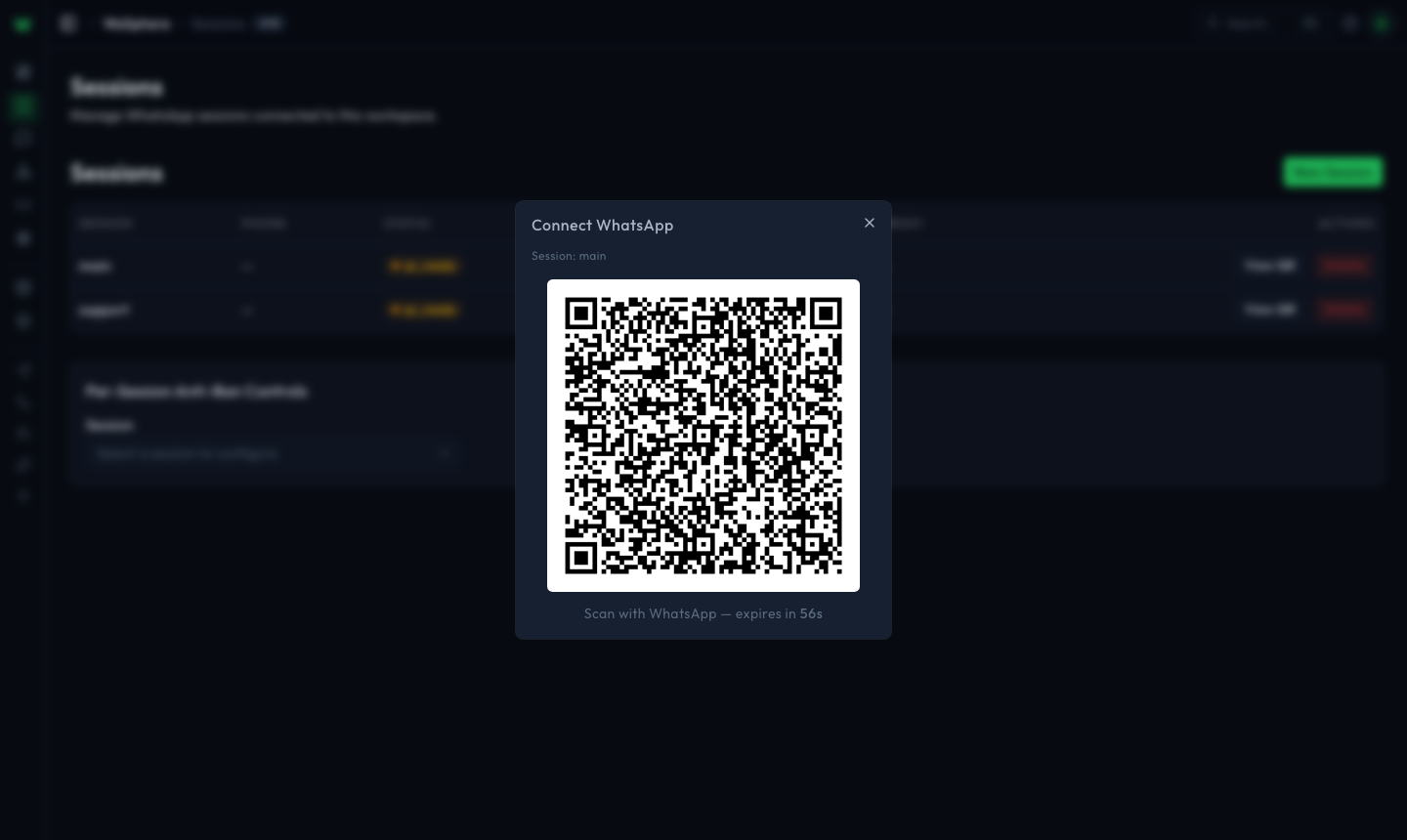
On your phone: WhatsApp → Settings → Linked Devices → Link a Device and scan it. The status changes to connected and your number appears.
Use a dedicated WhatsApp number for automation — not your personal number.
Step 7 — Create an API key
- Go to Developer → API Keys → New Key
- Name it (e.g.
test-key) and select themessages:sendandsessions:readscopes - Create — copy the key now, it's shown once. It looks like
wsk_abc123…
Also copy your Workspace ID from Settings — you'll need it in the URL.
Step 8 — Send your first message
Requests go through the Dashboard API, which proxies to your WA Server and injects the token. Use Authorization: Bearer <your key>. Replace {workspaceId}, {sessionId}, and the key.
curl -X POST https://api.your-domain.com/workspaces/{workspaceId}/proxy/api/sessions/{sessionId}/messages/text \
  -H "Authorization: Bearer wsk_your_key" \
  -H "Content-Type: application/json" \
  -d '{ "to": "447700900123", "text": "Hello from WaSphere!" }'
const res = await fetch(
"https://api.your-domain.com/workspaces/{workspaceId}/proxy/api/sessions/{sessionId}/messages/text",
{
method: "POST",
headers: {
Authorization: "Bearer wsk_your_key",
"Content-Type": "application/json",
},
body: JSON.stringify({ to: "447700900123", text: "Hello from WaSphere!" }),
}
);
console.log(await res.json());import requests
res = requests.post(
"https://api.your-domain.com/workspaces/{workspaceId}/proxy/api/sessions/{sessionId}/messages/text",
headers={"Authorization": "Bearer wsk_your_key", "Content-Type": "application/json"},
json={"to": "447700900123", "text": "Hello from WaSphere!"},
)
print(res.json())Running locally without a domain? Use
http://localhost:3000in place ofhttps://api.your-domain.com.
The to field is the recipient's number in international format without the + — e.g. 447700900123 (UK), 12125550100 (US). The message arrives within seconds.
Troubleshooting
"Test Connection" fails in Settings
Almost always the WA Server URL. In Docker it's http://wa-server:3001 (the service name), not localhost. See Configuration.
QR code doesn't appear
Check the WA Server logs: docker compose logs wa-server --tail=100. Make sure your WA Server is configured in Settings first (Step 5).
Session goes to disconnected right after scanning
The number is probably already linked elsewhere. On your phone, Settings → Linked Devices, remove stale entries, and rescan.
Message send returns 401 / 403
Check the Authorization: Bearer wsk_... header is present, the key has the messages:send scope, and (if the key is session-scoped) you're calling the matching session.
Next Steps
- Installation — every service and port explained
- Configuration — full environment variable reference
- Send Messages — all 14 message types
- Webhooks — receive incoming messages in real time
WaSphere Documentation
Self-hosted WhatsApp API platform — multi-session, webhook-driven, developer-first. Deploy in minutes with Docker.
Installation
Install WaSphere with the 4-service Docker Compose stack — requirements, the real .env, the docker compose up flow, and update/backup/teardown commands.